


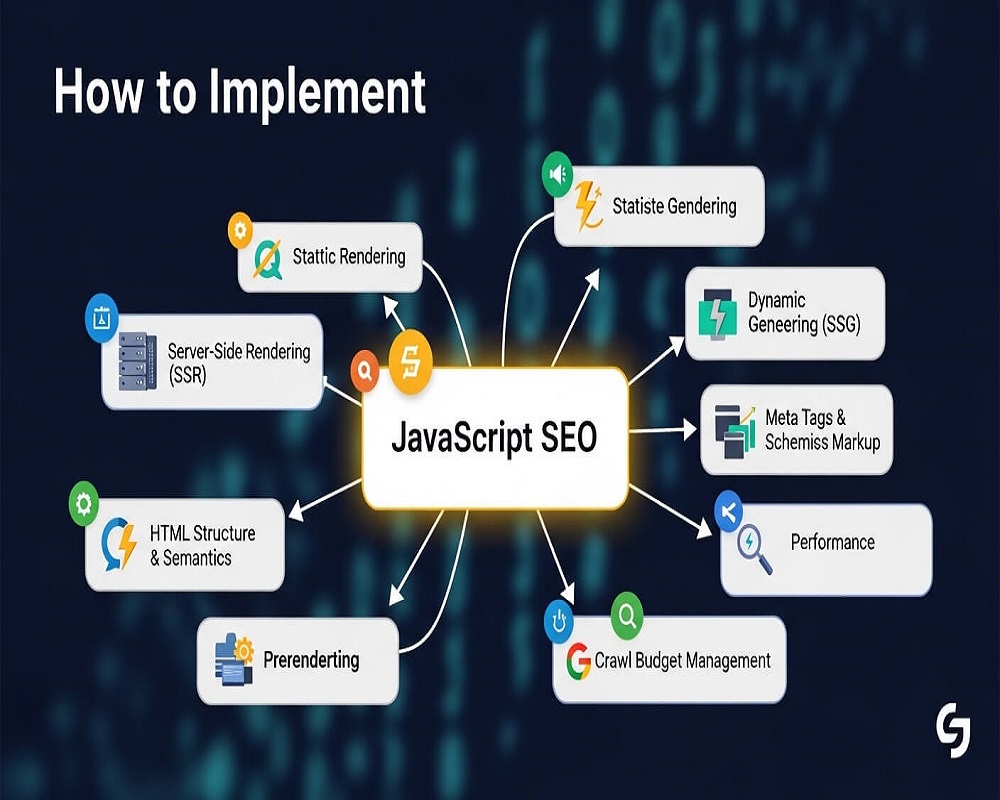
Short answer: To implement JavaScript SEO, make sure the content, links and SEO tags that matter are in the HTML your server sends, ideally through server-side rendering, static generation or hydration. Use real <a href> links and clean URLs (no # routes), return proper status codes, never block JavaScript or CSS files, keep bundles small, and confirm what Google sees with the URL Inspection tool in Search Console.
This guide is for developers, SEOs and site owners running React, Vue, Angular, Next.js or any site where JavaScript builds part of the page. You will learn how Google handles JavaScript, which rendering approach to choose, the practical rules that prevent most problems, and a step-by-step way to find out why a JavaScript page is not indexed.
How Google processes JavaScript pages
According to Google’s JavaScript SEO basics, Google processes JavaScript web apps in three phases: crawling, rendering and indexing. Googlebot fetches the URL and reads the HTML response, including links it can find there. The page then waits in a render queue; Google says it may stay there for a few seconds, but it can take longer. A headless, evergreen version of Chromium runs the JavaScript, and Google indexes the rendered result and adds any new links to the crawl queue.
Two consequences matter in practice. First, anything that exists only after rendering is discovered later than content in the initial HTML, and on large sites that delay adds up. Second, signals in the initial HTML can stop the process early: Google says that if it finds a noindex tag, it may skip rendering and JavaScript execution, so removing noindex with JavaScript later does not work. The full pipeline is covered in my guide to rendering in SEO.
Google is not the only reader
Bing, social preview bots and AI crawlers also read your pages. Vercel’s analysis of AI crawler traffic on its network found that none of the major AI crawlers it studied rendered JavaScript; they fetched JavaScript files but did not execute them. If your product descriptions or article text only exist after client-side rendering, assume ChatGPT, Claude and Perplexity cannot read them. My guide to AI crawlers and robots.txt covers how to manage those bots.
Choose a rendering approach
The single decision with the most SEO impact is where the HTML is built. Google’s documentation describes dynamic rendering as a workaround and not a recommended solution, and recommends server-side rendering, static rendering or hydration instead.
| Approach | Where HTML is built | SEO risk | Best for |
|---|---|---|---|
| Client-side rendering (CSR) | In the browser, after JavaScript runs | High: content and links depend on rendering; invisible to most AI crawlers | Logged-in apps, dashboards, pages that should not rank |
| Server-side rendering (SSR) | On the server for each request | Low, if the server output is complete | Content that changes often: listings, prices, news |
| Static site generation (SSG) | At build time | Lowest | Blogs, documentation, marketing pages |
| Incremental or on-demand regeneration | At build time, refreshed on a schedule or trigger | Low | Large catalogues where full rebuilds are slow |
| Dynamic rendering (separate HTML for bots) | A prerender service for crawlers only | Medium: extra complexity, risk of bots and users seeing different content | Short-term fix for legacy apps that cannot be changed quickly |
Frameworks make this easier than it used to be: Next.js and Nuxt support SSR and static generation per route, and Angular and SvelteKit have their own server rendering. Many headless CMS sites already use one of these, but I still find templates where the main content is fetched in the browser after the server sends an empty shell.
JavaScript SEO best practices
Links and URLs
- Use real links. Google says it can only discover links that are <a> elements with an href attribute. A <span onclick> or a button that changes the route is not a link to Googlebot.
- Use the History API, not fragments. example.com/#/shoes is one URL to Google. Single-page apps should route with the History API so each view has its own path.
- Put navigation in the initial HTML. Menus and category links rendered only on click or hover are discovered late or not at all. Good internal linking starts with links Google can see.
- Paginate with links. Infinite scroll and “load more” buttons need paginated URLs behind them. See how to handle pagination.
Titles, canonicals and robots tags
- Send them in the server HTML. JavaScript can change them, but if the initial HTML and the rendered page disagree you are relying on Google to pick the right one.
- Never inject noindex and hope to remove it. Google may skip rendering a page that starts with noindex.
- Keep canonicals consistent. A wrong canonical in the template, corrected by JavaScript later, is a common cause of pages being treated as duplicates. My guide to canonical tags explains the rules.
Status codes and errors
A single-page app often returns 200 for every URL, including ones that do not exist, which creates soft 404s. Google’s guidance gives two options: redirect with JavaScript to a URL where the server returns 404, or add a robots meta tag with noindex to error views using JavaScript. Server-rendered frameworks can usually return a real 404 status, which is better.
Resources and performance
- Do not block JavaScript or CSS in robots.txt. If Google cannot fetch them, it cannot render the page as users see it. Check your robots.txt file for old Disallow rules on /js/ or /assets/.
- Ship less JavaScript. Split bundles by route, defer non-critical scripts and remove unused libraries. Heavy JavaScript hurts Interaction to Next Paint and Largest Contentful Paint; see optimising Core Web Vitals for mobile.
- Version file names. Use content hashes in bundle names (app.3f9a1c.js) so Google does not render a page with an outdated cached script.
- Lazy-load images properly. Use the native loading=”lazy” attribute below the fold, never on the main image, and make sure the image URL is in the HTML.
Structured data
JSON-LD added by JavaScript can work, but server-rendered structured data is more reliable and is visible to other crawlers too. Test the rendered output with the Rich Results Test, and keep it consistent with what users see. My schema generator produces valid JSON-LD you can drop into the server template.
How to check what Google sees
- Compare view-source with the rendered DOM. View source shows what the server sent; the browser’s inspect panel shows the page after JavaScript. Main content, links, title and canonical should be in both.
- Use URL Inspection in Search Console. Run a live test and open “View tested page” to see the rendered HTML, a screenshot, and any resources that could not load.
- Crawl with JavaScript rendering on and off. Screaming Frog and Sitebulb can compare raw and rendered HTML across the whole site, which shows template-level problems quickly.
- Search for a unique sentence. Put a sentence that only appears after rendering in quotes with site:yourdomain.com. If it does not appear weeks after indexing, Google probably has not processed it.
- Check the Page indexing report. Look for “Crawled, currently not indexed”, “Soft 404” and “Duplicate, Google chose different canonical” on JavaScript templates. See my guide to the Page indexing report.
Why is my JavaScript page not indexed?
Does URL Inspection say the URL is on Google or can be indexed (no noindex, not blocked by robots.txt)?
In the live test, does the rendered HTML contain your main content and title?
Is the page reachable through normal <a href> links from other indexed pages, or listed in your sitemap?
Does the Google-selected canonical match the URL you inspected?
Result: a directive or block is stopping indexing. Remove noindex from the server HTML (not with JavaScript), and lift any robots.txt Disallow on the page or on the JavaScript and CSS files it needs. Then request indexing.
Result: rendering problem. Check the “More info” panel for blocked resources and JavaScript errors. Content fetched from an API that fails or times out for Googlebot is a common cause. The lasting fix is to render the content on the server.
Result: discovery problem. Google may not know the URL exists. Replace click handlers with real links, remove # routes, add the URL to your XML sitemap and link to it from relevant indexed pages.
Result: duplicate or canonical problem. The page may look identical to another URL before rendering, or the template sends a wrong canonical. Put unique content and the correct canonical in the server HTML.
Result: probably a quality or priority issue, not JavaScript. Google can see and reach the page but has chosen not to index it yet. Improve the content, strengthen internal links and give it time.
Mistakes I find most often on JavaScript sites
- A “Loading…” shell as the server response on templates that should rank, such as product and blog pages.
- Every route returning 200, so deleted products and mistyped URLs become soft 404s.
- The same title and canonical on every page in the server HTML, corrected only after JavaScript runs.
- Filters and tabs that change content without changing the URL, so useful filtered views can never rank, or that create thousands of URLs that should not. See faceted navigation SEO.
- Testing only in Chrome on a fast laptop. Many visitors in Pakistan browse on mid-range Android phones over mobile data, where a large bundle takes far longer to parse and run. Test on a real mid-range phone or with CPU throttling in DevTools before calling a page fast.
Frequently asked questions
Can Google crawl and index JavaScript?
Yes. Google renders pages with an evergreen version of Chromium and indexes the rendered result. It does not mean every JavaScript page is indexed reliably: rendering adds a step, links must be real anchor elements, and errors or blocked resources can leave content unseen.
Is client-side rendering bad for SEO?
Not always, but it carries the most risk. Content and links appear only after rendering, other search engines and AI crawlers may not see them, and performance on slow devices suffers. For pages that need to rank, server-side rendering or static generation is safer.
Should I still use dynamic rendering?
Only as a temporary fix. Google calls it a workaround, not a recommended solution, and suggests server-side rendering, static rendering or hydration instead.
How do I test JavaScript SEO for free?
Use URL Inspection in Search Console for individual pages, compare view-source with the inspected DOM in your browser, run the Rich Results Test for structured data, and use a crawler’s free tier with JavaScript rendering enabled for a sample of URLs.
Do JavaScript redirects work for SEO?
Google can follow them once it renders the page, but server-side 301 or 308 redirects are clearer and work for every crawler. Use JavaScript redirects only when you cannot redirect on the server.
Does JavaScript affect Core Web Vitals?
Yes. Large bundles delay rendering, which hurts Largest Contentful Paint, and long tasks on the main thread hurt Interaction to Next Paint. Splitting code and deferring non-critical scripts usually helps both.
Sources
- Google Search Central, “Understand JavaScript SEO basics” (last updated 2026).
- Google Search Central, “Dynamic rendering as a workaround” (last updated 2025).
- HTTP Archive, “Web Almanac 2024: JavaScript” (2024).
- Vercel, “The rise of the AI crawler” (December 2024).
If your JavaScript site is not getting indexed the way it should, my technical SEO services include a rendering audit of every key template, or you can ask me a question first.